Best Picture Mode for Samsung TV: Optimal Settings
For most Samsung TVs, Movie is the best picture mode for everyday viewing because it gives films and shows a more natural, less overprocessed image; choose Filmmaker Mode when you want a movie to look closer to the creator’s intent, and Standard when a bright room makes the other modes look too dim.
There is no single setting that suits every Samsung TV, room or video source. Menu names and available controls vary by model and year, and OLED, QLED, Neo QLED and LED TVs can behave differently. Use the guidance below as a starting point, then adjust the picture for your room rather than copying a number blindly.
Our top picks
 Samsung 55-Inch Class The Frame LS03F 4K
- Looks like real art with a slim design…
- When you're not watching TV, the Frame transforms…
- LIFELIKE PICTURE WHEN IT’S ON, MUSEUM-WORTHY WHEN IT’S…
Samsung 50-Inch Class The Frame LS03F 4K- Looks like real art with a slim design…
- When you're not watching TV, the Frame transforms…
- LIFELIKE PICTURE WHEN IT’S ON, MUSEUM-WORTHY WHEN IT’S…
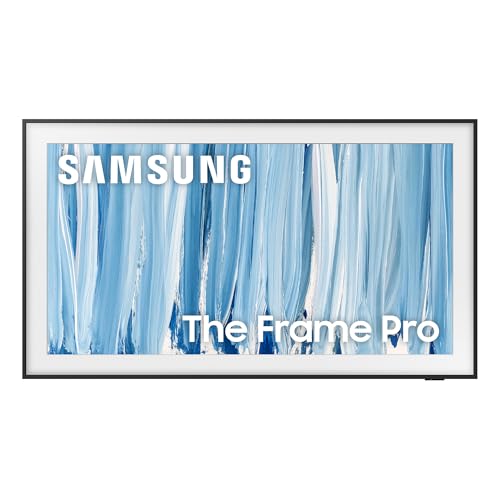 Samsung 55-Inch Class The Frame Pro LS03HW
- Experience bold contrast in both dark and bright…
- A PICTURE FRAME AESTHETIC WITH WIRELESS CONNECTION HUB¹:…
- Enjoy a personal art gallery at home with…
| Product | Key specs | |
|---|---|---|
| Samsung 55-Inch Class The Frame LS03F 4K | Looks like real art with a slim design… When you're not watching TV, the Frame transforms… LIFELIKE PICTURE WHEN IT’S ON, MUSEUM-WORTHY WHEN IT’S… | Check price |
| Samsung 50-Inch Class The Frame LS03F 4K | Looks like real art with a slim design… When you're not watching TV, the Frame transforms… LIFELIKE PICTURE WHEN IT’S ON, MUSEUM-WORTHY WHEN IT’S… | Check price |
| Samsung 55-Inch Class The Frame Pro LS03HW | Experience bold contrast in both dark and bright… A PICTURE FRAME AESTHETIC WITH WIRELESS CONNECTION HUB¹:… Enjoy a personal art gallery at home with… | Check price |
 Samsung 65-Inch Class The Frame Pro LS03HW Samsung 65-Inch Class The Frame Pro LS03HW | With mini LEDs for precision lighting, our best… Elevate any room with this stunning fusion of… Enjoy a personal art gallery at home with… | Check price |
As an Amazon Associate we earn from qualifying purchases at no extra cost to you.
Movie, Filmmaker or Standard?
| Mode | Best for | What to expect | Main trade-off |
|---|---|---|---|
| Movie | Films, series and general evening viewing | Warmer, more restrained color and less aggressive processing | May look subdued in a sunlit room until brightness is adjusted |
| Filmmaker Mode | Movies in a dark or dim room | Turns off or limits certain motion and image-processing effects | Can feel too dim or less crisp to viewers used to vivid showroom settings |
| Standard | Daytime TV, casual viewing and bright rooms | A brighter, more immediately vivid image | Extra processing or cooler-looking color may make films less natural |
Choose Movie for a balanced everyday picture
Movie mode is a good default if you watch a mix of streaming shows, films and broadcast TV. It generally avoids the exaggerated sharpness and vivid color that can make faces look unnatural. If a particular film offers Filmmaker Mode, compare it with Movie using the same scene; the difference is often a matter of preference and room brightness, not a simple quality ranking.
Choose Filmmaker Mode for dark-room movie nights
Filmmaker Mode is designed to reduce processing that changes the original presentation, including motion smoothing on many models. Use it when watching films in a dim room and you prefer the intended color and motion. It is not automatically the best option for sports, daytime viewing or every program: a bright room can wash out shadow detail, and some viewers dislike the more cinematic motion cadence.
Choose Standard when the room is bright
Standard is a practical choice for daytime news, casual TV and rooms with substantial window light. It can make the image easier to see without requiring you to raise every picture control. If skin tones look too cool or overly saturated, try Movie mode and raise brightness or the TV’s panel-light control instead of increasing color intensity.
Day versus night: adjust light output first
Before changing color or sharpness, set the picture mode and then adjust the control that governs screen light. Samsung menus may call this Brightness, Panel Brightness, OLED Brightness or Backlight, depending on the TV. The ordinary Brightness control may instead affect black level, so check the on-screen label and avoid assuming the controls are interchangeable.
| Viewing situation | Starting picture mode | Brightness approach | What to check |
|---|---|---|---|
| Bright daytime room | Standard or Movie | Raise panel light until the picture is comfortable; enable the TV’s ambient-light adjustment if you want it to respond to room changes | Faces remain natural and dark scenes are still distinguishable |
| Moderately lit room | Movie | Use a middle setting, then fine-tune for your seating position and window light | White areas do not feel glaring and shadow detail is visible |
| Dim or dark room | Movie or Filmmaker Mode | Lower panel light until bright scenes are comfortable without losing detail | Black areas look dark but near-black objects are not swallowed |
These are situation-based starting points, not universal brightness values: panel type, screen size, firmware and lighting all affect the result. If the TV changes brightness noticeably during a program, look for power-saving or adaptive-brightness features. Disable them only if their behavior bothers you; they can be useful when room lighting changes throughout the day.
Set color and contrast without overcorrecting
- Color temperature: Warm settings may look yellow at first if you are accustomed to a cooler showroom image. Give your eyes time to adjust before changing it back. Movie and Filmmaker modes commonly use a warmer presentation.
- Color: Start with the mode’s default. Increase saturation only if colors look distinctly washed out; too much can erase subtle differences in clothing, skies and skin tones.
- Contrast: Leave it near the default unless bright clouds, snow or white shirts lose visible texture. If highlights become featureless, reduce contrast slightly.
- Sharpness: Keep it low or at the model’s neutral point. High sharpness can add outlines around text and faces rather than restoring detail that is absent from the source.
- Black level: If dark scenes look gray, check the source device’s video-range setting and the TV’s black-level setting before lowering brightness. A mismatch can crush shadows or lift blacks.
Motion settings: smooth sports, natural films
Motion interpolation—sometimes found under Picture Clarity or a similar menu—creates extra frames between the original ones. It can make fast sports easier to follow, but it may also make films look unnaturally smooth or introduce artifacts around moving objects.
For films, begin with motion processing off or at its lowest setting. For sports, try a low custom setting and watch a fast-moving ball, scoreboard text and camera pans. Reduce it if you see halos, shimmering or doubled edges. If judder bothers you during movies, test a small adjustment rather than setting every motion control to maximum. Different Samsung models expose different controls, so use the closest available option.
A five-minute setup routine
- Choose a mode for the room. Start with Movie for general viewing, Filmmaker Mode for a dim-room film, or Standard for bright daytime use.
- Use familiar content. Pick a scene with a face, a bright area and a dark area. Streaming quality varies, so avoid judging settings from a low-resolution or heavily compressed clip.
- Adjust panel light. Raise it for daylight or lower it at night until the image is comfortable. Preserve visible detail in both highlights and shadows.
- Check color and sharpness. Keep them near the mode defaults unless you can identify a specific problem. Avoid compensating for poor source quality with excessive sharpness or saturation.
- Set motion for the content. Use little or no interpolation for films; try a low amount for sports if it improves clarity.
- Repeat for HDR if needed. HDR programs may use separate picture settings and can look much brighter than standard video. Adjust that mode while playing actual HDR content.
Common setup mistakes and ownership notes
Picture settings are often saved separately by input, app, or signal type, so a change made while watching a streaming app may not carry over to a game console or cable box. Some sets also offer a setting to apply changes to all sources. Check each source you use regularly before concluding that a setting did not stick.
Software updates can rename or move menu options. If you reset the TV, switch inputs or change picture modes, review brightness and motion again. Avoid changing multiple controls at once: make one adjustment, replay the same scene and decide whether it helped. This makes it easier to return to a good baseline if the image starts looking worse.
Bottom line
For the best picture mode for Samsung TV viewing, start with Movie for a natural all-purpose image, use Filmmaker Mode for films in a dim room, and choose Standard when daytime light makes a restrained picture difficult to see. Then tune panel brightness to the room, keep color and sharpness close to their defaults, and use motion processing sparingly. The best final setting is the one that keeps detail visible and remains comfortable for the content and lighting you actually watch.